> For the complete documentation index, see [llms.txt](https://document.tek-labs.app/salepify-userguide/llms.txt). Markdown versions of documentation pages are available by appending `.md` to page URLs; this page is available as [Markdown](https://document.tek-labs.app/salepify-userguide/user-guides/upsell-offers/product-bundle.md).
# Product Bundle
**Title:** Name of the rule discount. This is for personal use, only you can see how this offer is named.
Title
## Bundle details
Configure the details and image of the **representative product** that will be displayed for the bundle when the specified conditions are met. This product will serve as the main item representing all bundled products in the offer.
* **Product title:** This will be the bundle name in Shopify and will appear on the frontend.
* **Product description:** Provide your customers with more details about the bundle, such as highlighting its benefits, included products, and any special offers to encourage purchases.
* **Product image:** Upload an image from your computer to set as the bundle product's image on the frontend.
Bundle details
## Bundle deal
* Select the products you wish to include in your bundle by searching for their names and manually choosing them.
* Set the minimum quantity for each product that can be included in the deal by entering the desired value in the box next to the product name.
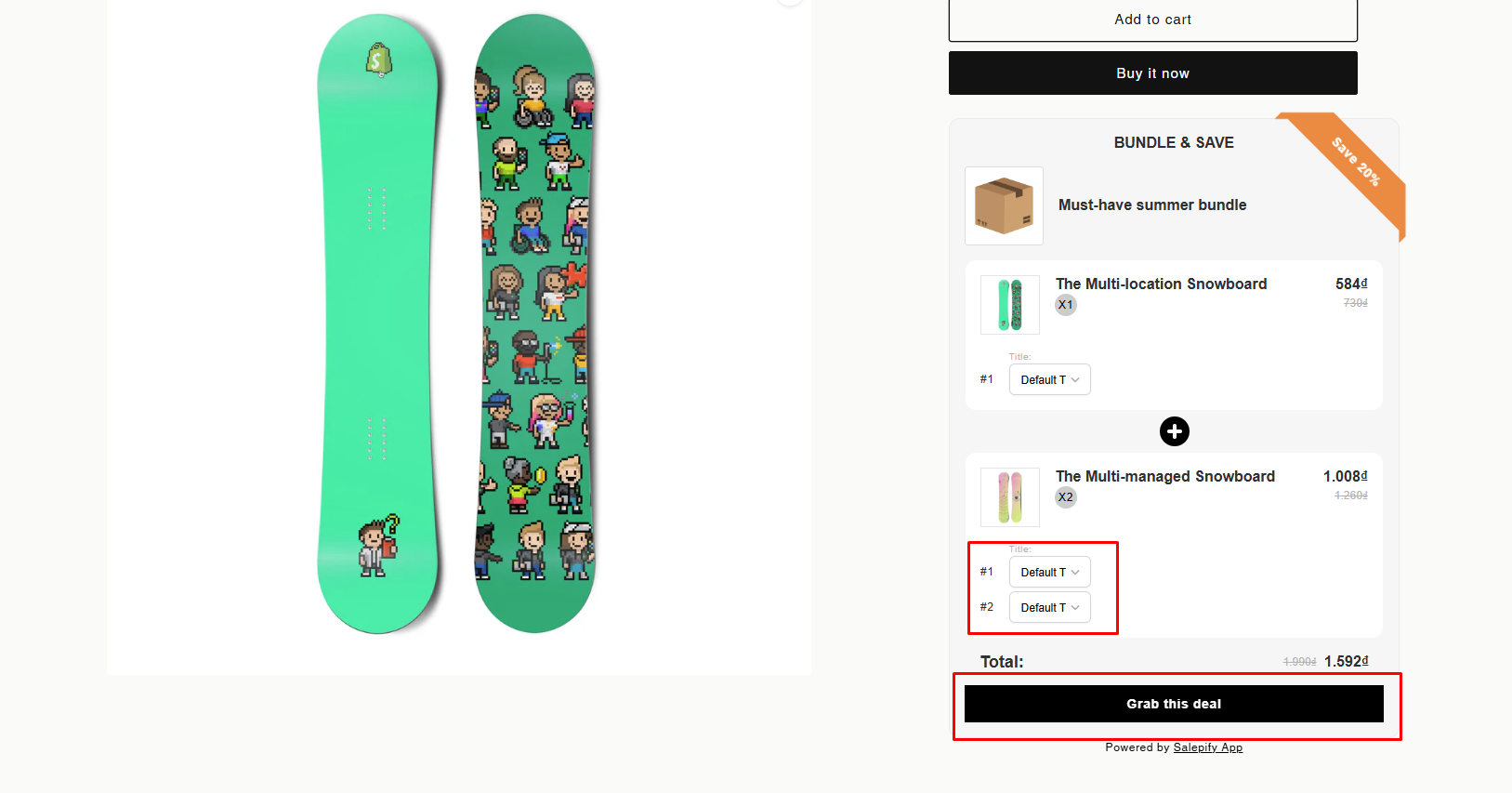
> For example, your customers will need to buy 1 of The Multi-location Snowboard, 2 of The Multi-manage Snowboard, and 3 of The Videographer Snowboard to be eligible to receive the bundle discount in total.
Bundle deal
## Discount
* **No Discount:** Bundle price stays the same as the original price.
* **Percentage Discount:** The price will be reduced by a percentage of the original price.
* **Fixed Discount:** The price will be deducted by an amount based on the value you enter.
Discount
## Bundle deal display
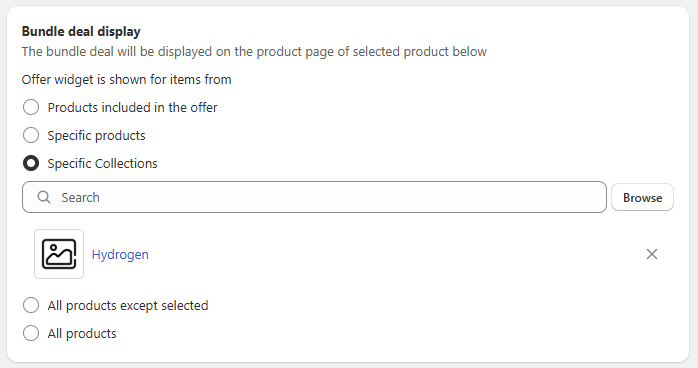
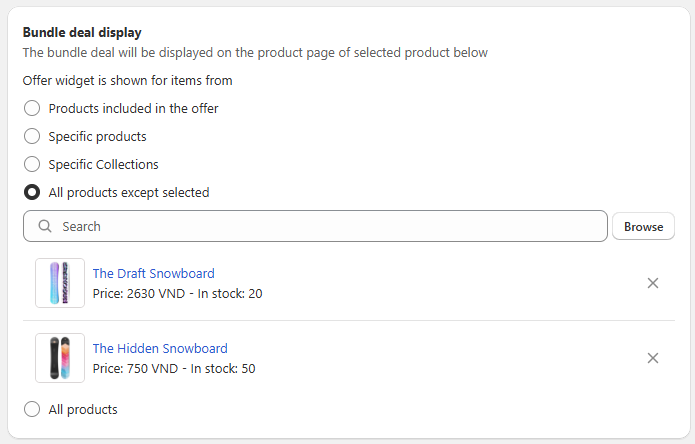
The bundle deal will be prominently displayed on the product page of the selected item below:
* **Products included in the offer:** Only those products selected in the bundle can have the Bundle block displayed on their product pages.
* **Specific products:** A selected group of individual products has the bundle on their pages.
Specific products
* **Specific collections:** All products within a specific collection have the bundle on their pages.
Specific collections
* **All products except selected:** Let the bundle appear on all products in your store, excluding the ones you’ve specifically chosen.
All products except The Draft Snowboard and The Hidden Snowboard
* **All products:** Let the bundle appear on all products in your store.
## **Active dates**
Choose the Start and End date to set offer's duration. (End date is optional).
Active dates
## **Layout**
Adjust how the discount tiers appear on your store and allow customers to select and apply the discount directly from the Volume Discount block without needing extra steps.
* **Display only:** Customers can only view the tier information in the Volume discount block.
Display only
* **Interactive:** Customers can select the variant they want for each product and click the **"Grab this deal"** button under their preferred tier to instantly add the bundle product to their cart and apply the discount (if it has) automatically.
Interactive
{% hint style="success" %}
The **Preview** section gives you a real-time view of how the Volume Discount block will appear on your product page.
* To customize the layout and design to match your store’s theme, click **"Edit widget style"** to access the **Styling** section.
* To modify the default text displayed in the block, click **"Edit default text"** to navigate to the **Translations** section for further customization.
{% endhint %}