> For the complete documentation index, see [llms.txt](https://document.tek-labs.app/post-purchase-userguide/llms.txt). Markdown versions of documentation pages are available by appending `.md` to page URLs; this page is available as [Markdown](https://document.tek-labs.app/post-purchase-userguide/user-guides/how-to-set-up-funnel-step-by-step/post-purchase-upsell/enable-post-purchase-page-setting.md).
# Enable Post-purchase page setting
Select Tek Labs PostPurchase for your post-purchase page and check that it's on.
Shopify shows only one app on the post-purchase page. To show your offers, **Tek Labs PostPurchase** must be the selected app.
## Turn it on
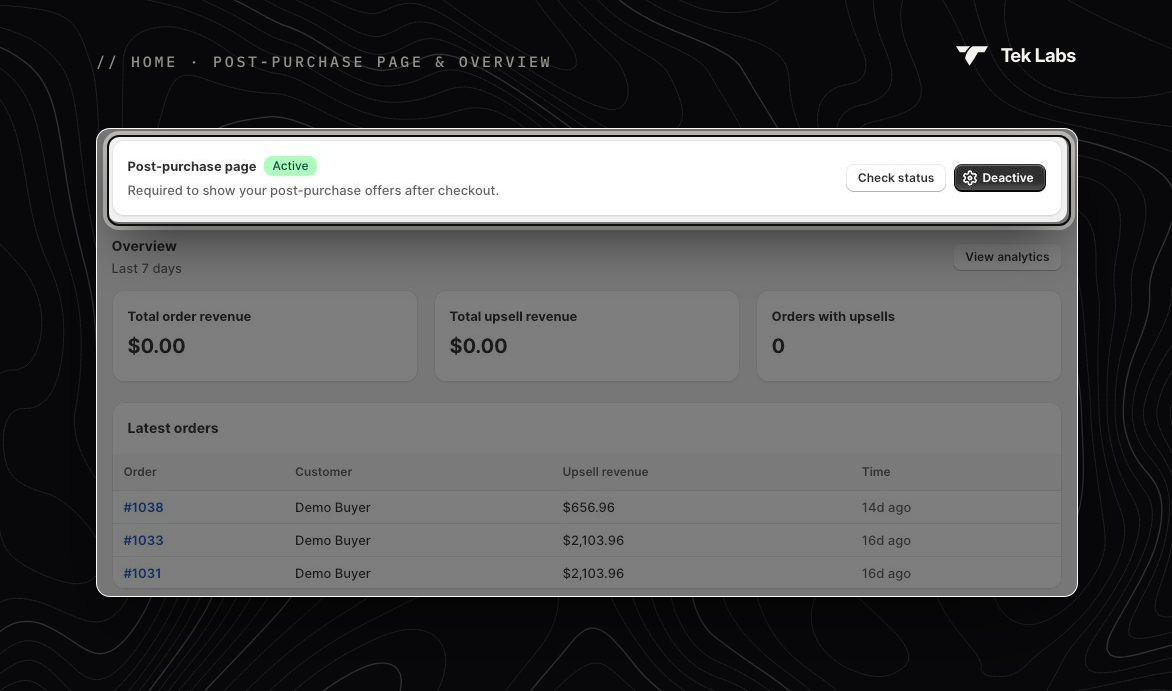
1. In the app, go to **Home**. In **Activate Tek Labs PostPurchase in checkout**, or on the **Post-purchase page** card, click **Active**.
2. Shopify opens **Settings › Checkout** in a new tab. Scroll to **Post-purchase page**.
3. Under **Use an app to add features at checkout after payment**, select **Tek Labs PostPurchase**.
4. Click **Save**.
## Check that it's on
Back in the app, click **Check status**:
* "Tek Labs PostPurchase is enabled for the post-purchase page": you're all set, and the **Post-purchase page** card shows **Active**.
* "Tek Labs PostPurchase is not enabled yet": repeat the steps above and make sure you clicked **Save** in Shopify.
## Warning in the Post purchase upsell tab
If the app isn't selected, the funnel's **Post purchase upsell** tab shows the warning **"Tek Labs PostPurchase is currently disabled for checkout"**. Click **Enable Tek Labs PostPurchase in Checkout** to open the Shopify setting, select the app and save. Then click **Check app status**. When it's done, the banner changes to **"Tek Labs PostPurchase is successfully selected for checkout"**.
{% hint style="info" %}
Even when the app is selected, some orders can't show a post-purchase page, for example orders without a shipping address or paid with some wallets. See [Shopify Limitations and Considerations](/post-purchase-userguide/user-guides/shopify-limitations-and-considerations.md).
{% endhint %}