> For the complete documentation index, see [llms.txt](https://document.tek-labs.app/post-purchase-userguide/llms.txt). Markdown versions of documentation pages are available by appending `.md` to page URLs; this page is available as [Markdown](https://document.tek-labs.app/post-purchase-userguide/user-guides/how-to-set-up-funnel-step-by-step/post-purchase-upsell/customize-post-purchase-upsell-offers.md).
# Customize Post-purchase upsell offers
Add products, discounts, shipping and widgets to your post-purchase offers.
Open a funnel and go to the **Post purchase upsell** tab.
## Add an offer
Click **Add offer** in the **Upsell #1** slot and choose how products are picked:
| Option | What it does |
| --------------------- | --------------------------------------------------------------------------------- |
| **Specific products** | You choose the products to offer. |
| **Automatic upsell** | Shopify recommends products related to the first product in the customer's order. |
Once Upsell #1 has a product, the **Upsell #2** (if accepted) and **Downsell** (if declined) slots appear. Add offers to them the same way.
A filled slot shows the products, the shipping ("Free shipping", a shipping amount or "Mixed shipping") and the discount ("No discount", "20% discount", "Mixed discounts"). Click **Edit offer** to change it, or the **⋯** menu › **Delete offer** to remove it.
## The offer editor
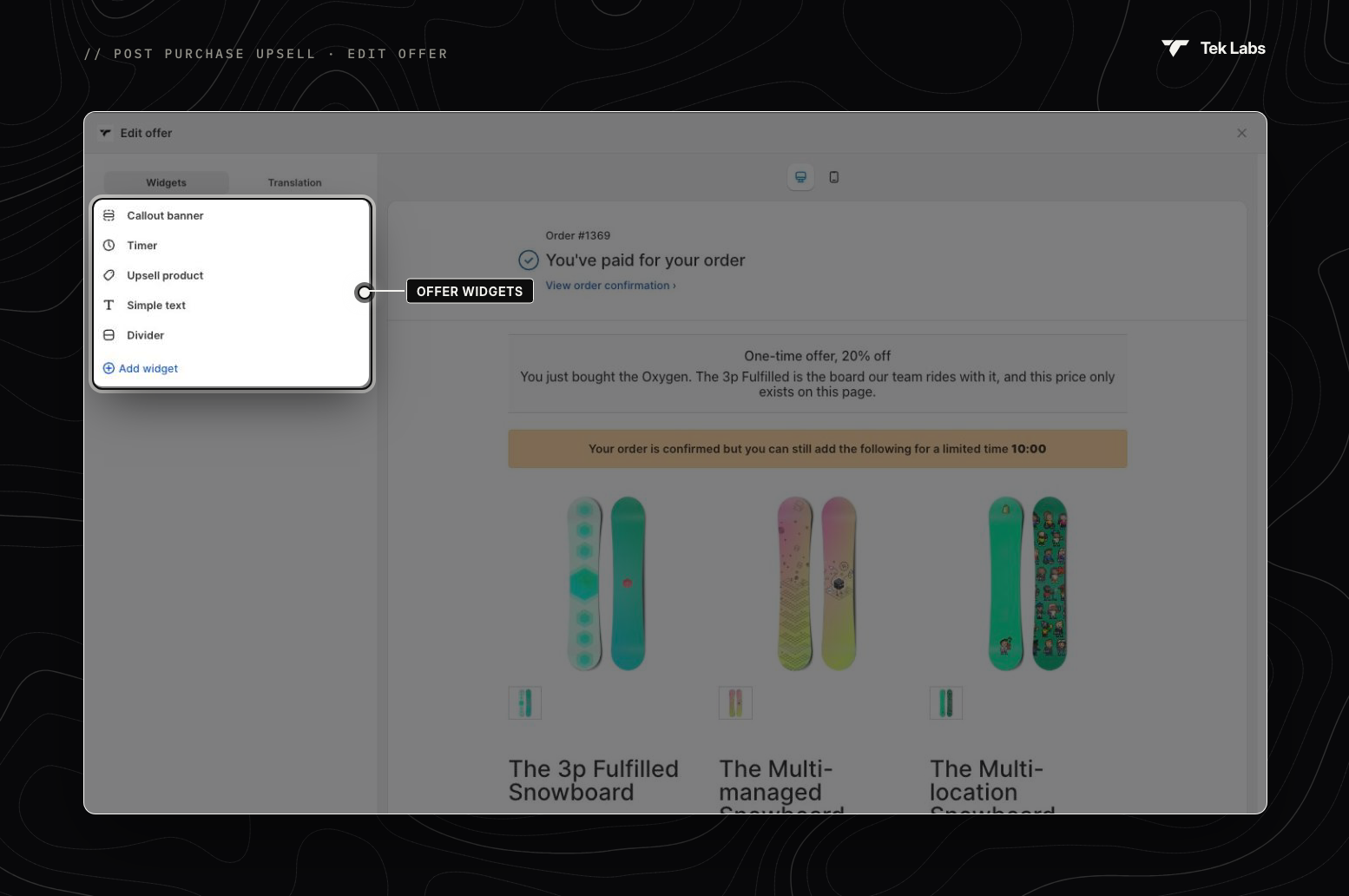
**Edit offer** opens a full-screen editor. The left panel lists the offer's widgets. The right side previews the post-purchase page, with a **Desktop** / **Mobile** switch.
* Click a widget to edit its settings, and the back arrow to return to the list.
* Drag widgets to reorder them. Use the eye icon to hide a widget without deleting it.
* **Translation** translates the offer's text. See [Translation](/post-purchase-userguide/user-guides/translation.md).
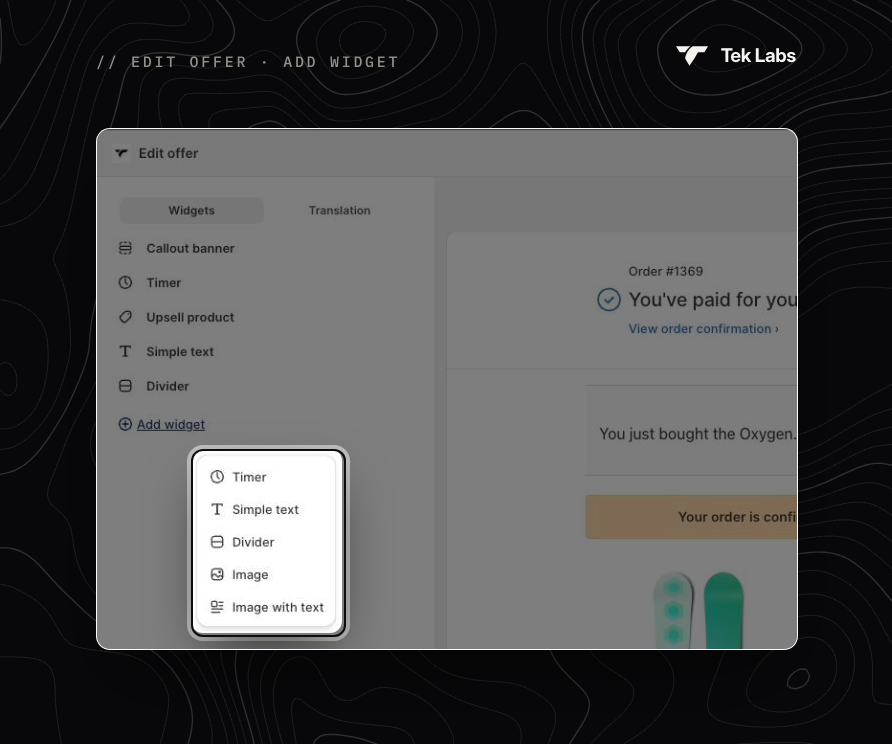
New offers start with a **Callout banner**, a **Timer** and the **Upsell product** widget. Click **Add widget** to add more:
Click **Save** in the save bar when you're done.
## Upsell product
The Upsell product widget holds the products on offer. Every offer has exactly one, and it can't be removed. Its settings are grouped into four sections.
### Product selection
* **Specific products**: drag to reorder, click the bin to remove, and **Add more products** to add more. A **Missing required setting** badge marks a product that still needs its settings.
* **Automatic upsell**: set the **Number of recommended products**. **Change product** switches to specific products.
Click a product to open its own settings:
| Setting | Options |
| ----------------------- | ---------------------------------------------------------------------- |
| **Automatic Discount** | A value with **% Off** or a fixed amount off (in your store currency). |
| **Shipping type** | **Free shipping** (default) or **Charge for shipping** with an amount. |
| **Product title** | Tick **Use custom title** to replace the product name. |
| **Product description** | Tick **Show description** and enter the text to show. |
Click **Done** to close it.
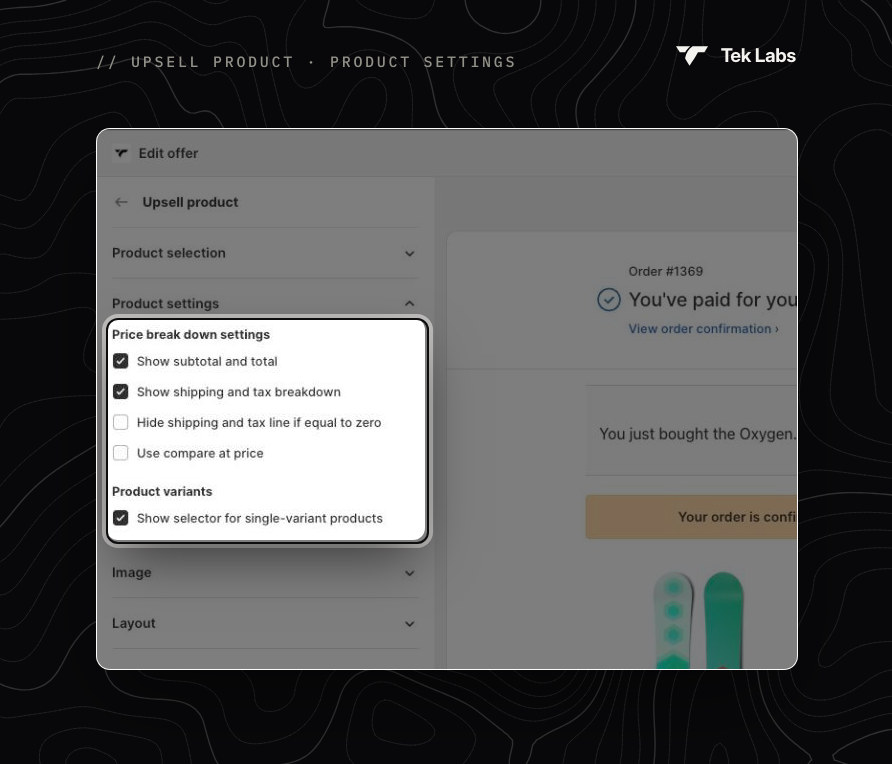
### Product settings
* **Price break down settings**
* **Show subtotal and total** (on by default)
* **Show shipping and tax breakdown** (on by default)
* **Hide shipping and tax line if equal to zero**
* **Use compare at price**: shows the product's compare-at price as the original price.
* **Product variants**: **Show selector for single-variant products** (on by default).
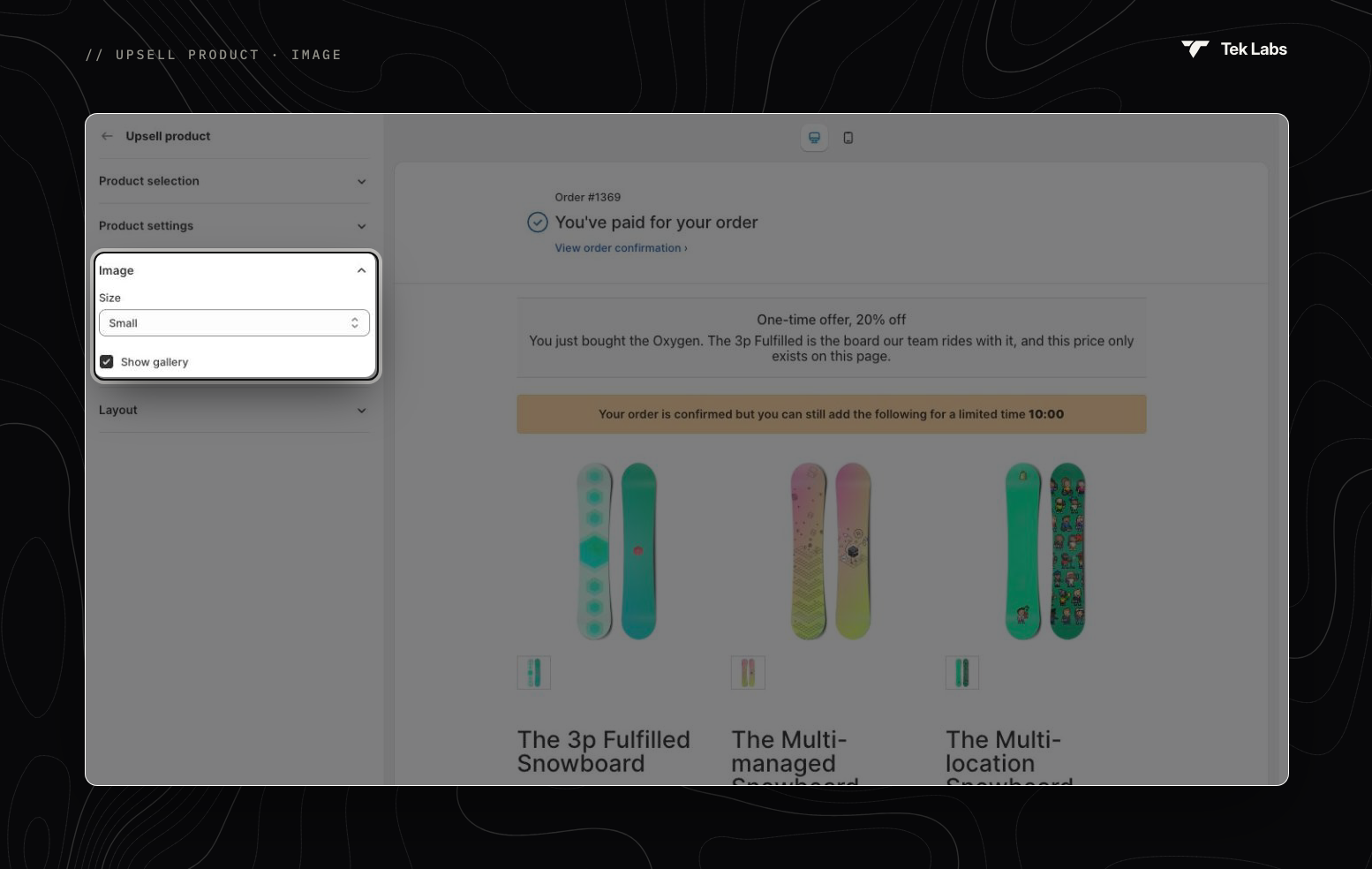
### Image
* **Size**: **Large**, **Medium** (default) or **Small**.
* **Show gallery**: shows the product's other images as thumbnails.
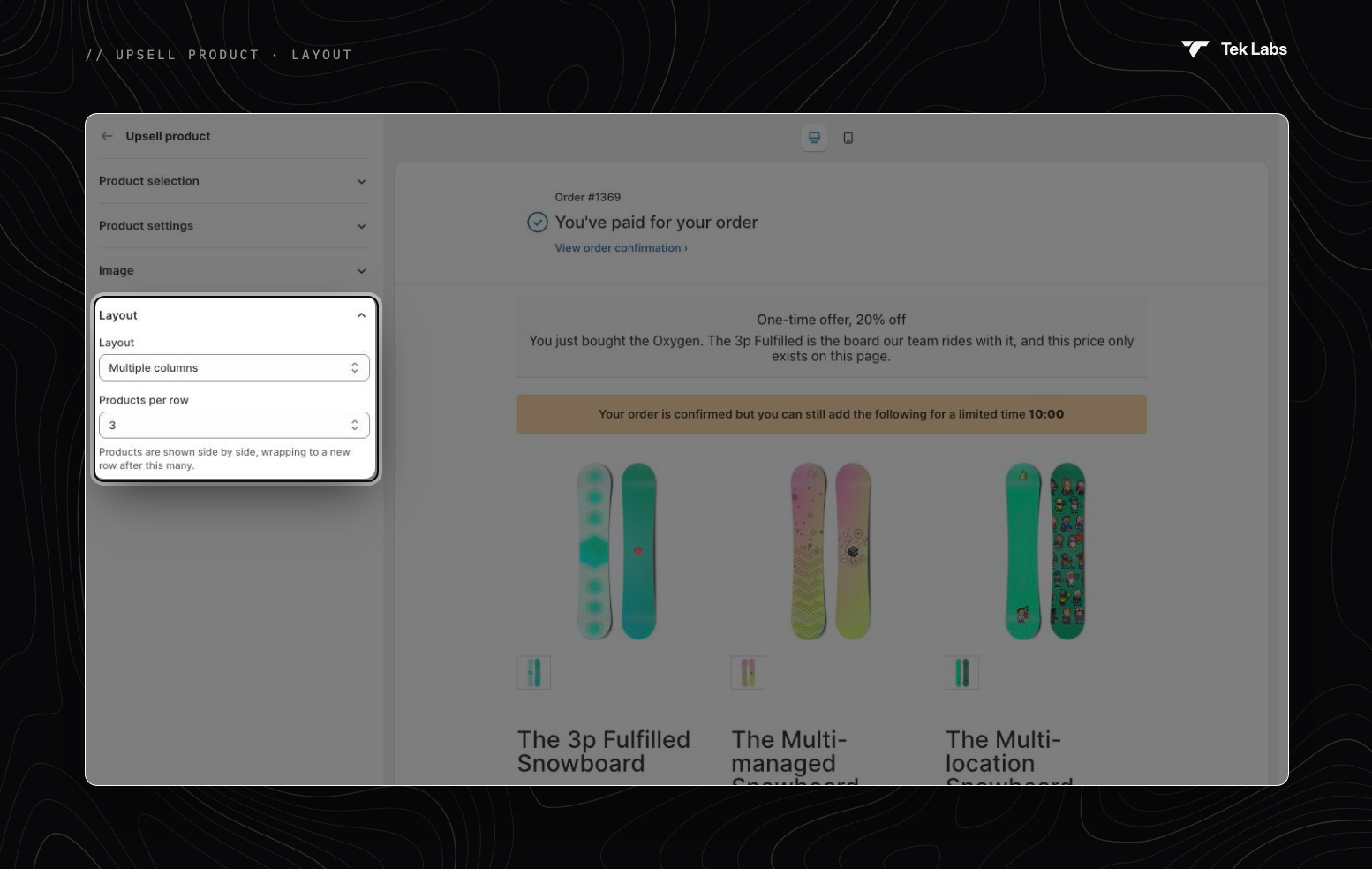
### Layout
* **Layout**: **Single column**, **Two columns - Image left** (default), **Two columns - Image right** or **Multiple columns**.
* **Products per row** (Multiple columns only): 2, 3 or 4. Products wrap to a new row after this many.
{% hint style="info" %}
Products that are inactive or out of stock aren't shown on the post-purchase page.
{% endhint %}
## Other widgets
### Callout banner
A highlighted message at the top of the offer. An offer can have one callout banner, and it always stays at the top.
* **Title** and **Content**.
* **Size** and **Alignment**.
* **Border** and **Background**: tick to show them.
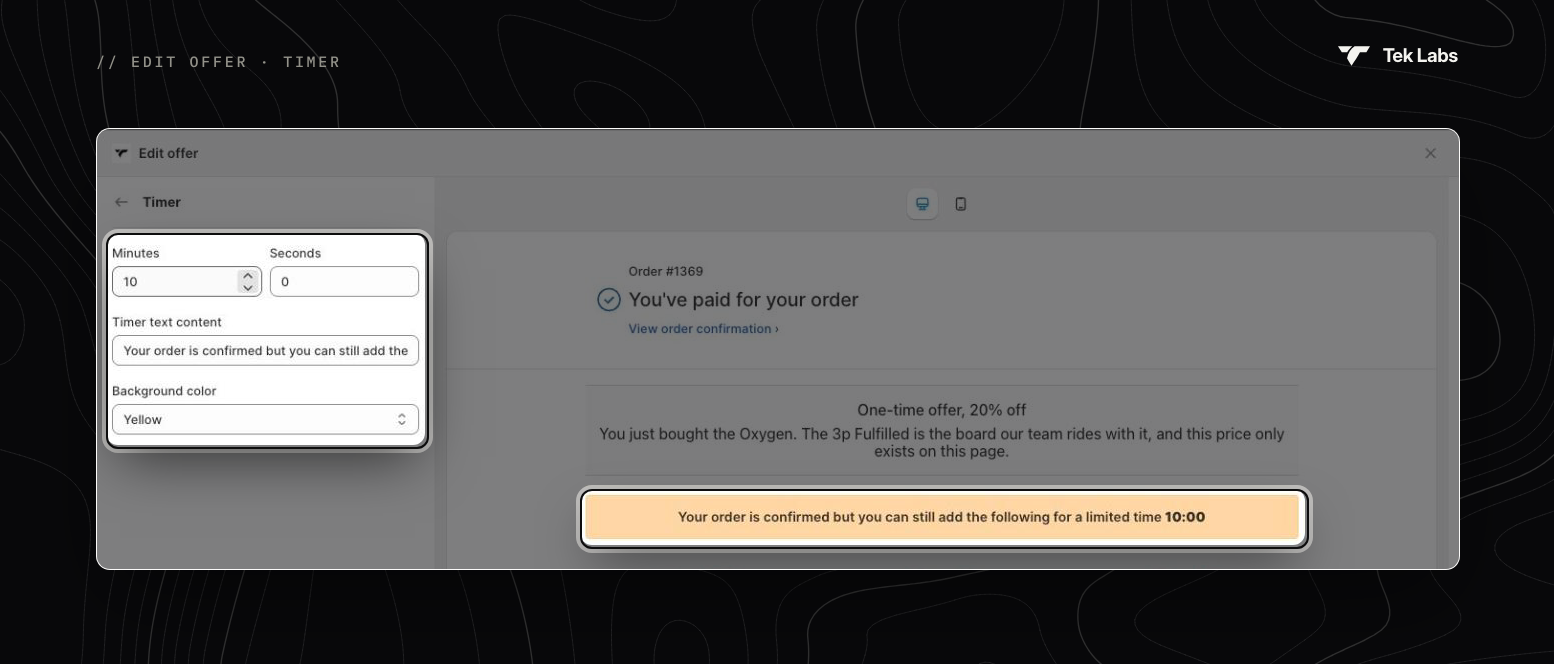
### Timer
A countdown that adds urgency.
* **Minutes** and **Seconds**: the countdown length (10:00 by default).
* **Timer text content**: the message shown next to the countdown.
* **Background color**: Blue, Green, Yellow or Red.
{% hint style="warning" %}
When the timer reaches zero, the offer is declined automatically and the customer moves on.
{% endhint %}
### Simple text
* **Content**, **Size** (Small, Medium, Large, Extra large), text tone and **Alignment**.
### Divider
A line that separates widgets. **Line width**: Thin, Medium, Thick or Extra thick.
### Image
* Upload a .gif, .jpg or .png image (up to 20 MB).
* **Size** and **Alignment**.
### Image with text
* Upload an image and set its **Size**.
* **Title** and **Content**.
* **Image position**: Left, Right, Above or Under the text.
## What the customer sees
The customer sees the offer with an **Accept this offer · {total}** button and a **Decline this offer** link. If you turned them on, the price lines (Subtotal, Shipping, Taxes, Total) are shown too. You can change or translate these labels in the offer's **Translation** tab.