> For the complete documentation index, see [llms.txt](https://document.tek-labs.app/free-gift-userguide/llms.txt). Markdown versions of documentation pages are available by appending `.md` to page URLs; this page is available as [Markdown](https://document.tek-labs.app/free-gift-userguide/user-guides/upsell-offers/product-bundle.md).
# Product Bundle
Sell a set of products together at one price.
A Product bundle sells several products together, optionally at a discount. When you save the offer, the app creates a **bundle product** in Shopify with the title, description and image you set. The bundle widget appears on the product pages you choose, and shoppers add the whole bundle with **Grab this bundle**.
{% hint style="info" %}
Turn on the **Product bundle** app embed in your theme. See [Enabling Tek Labs app](/free-gift-userguide/getting-started/enabling-tek-labs-app.md).
{% endhint %}
## Step 1 · Offer
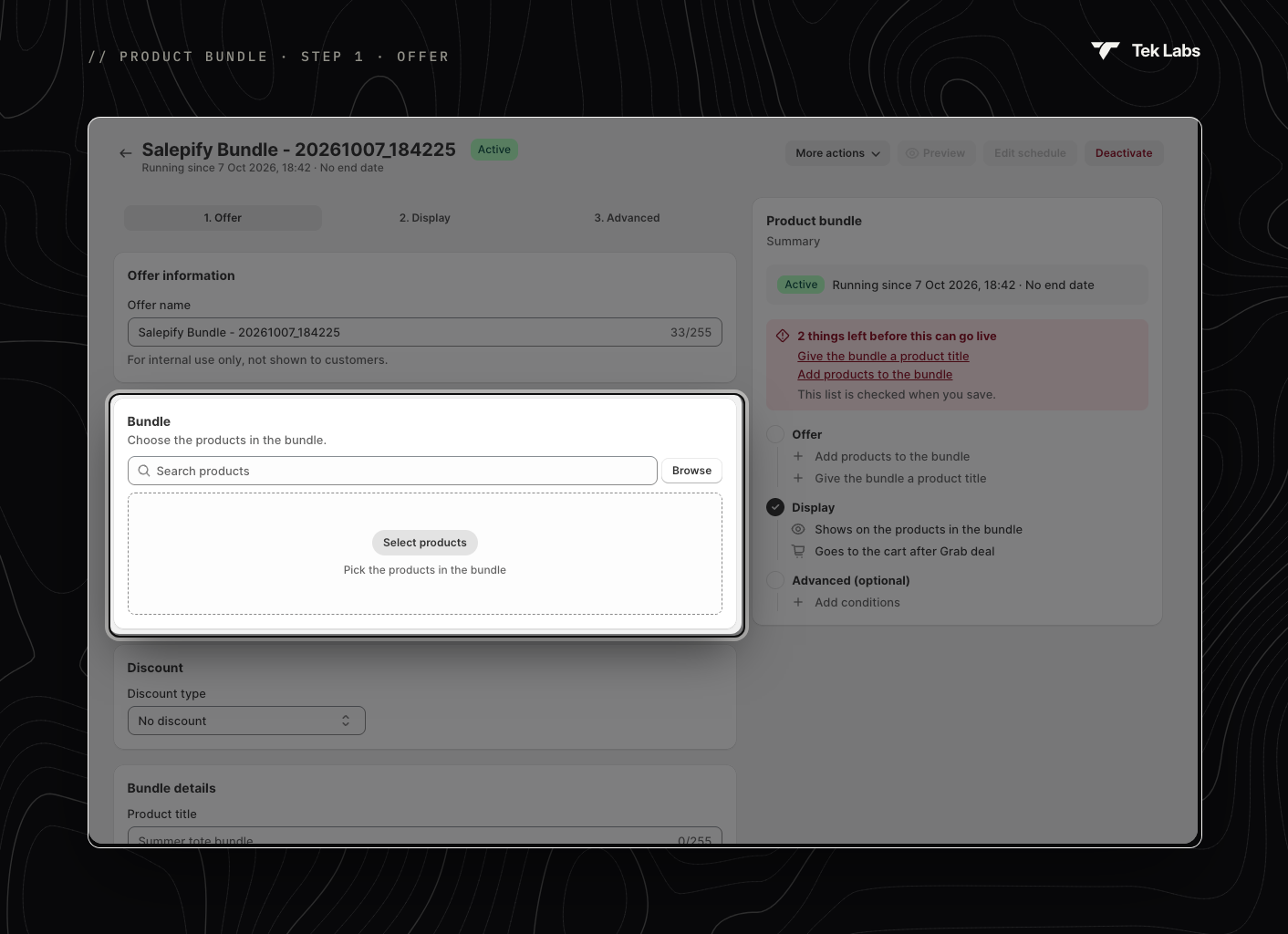
### Offer information
**Offer name**: for your reference only.
### Bundle
Pick the products in the bundle, then enter how many units of each product are included.
> *Example:* 1 × The Multi-location Snowboard, 2 × The Multi-managed Snowboard and 3 × The Videographer Snowboard make one bundle.
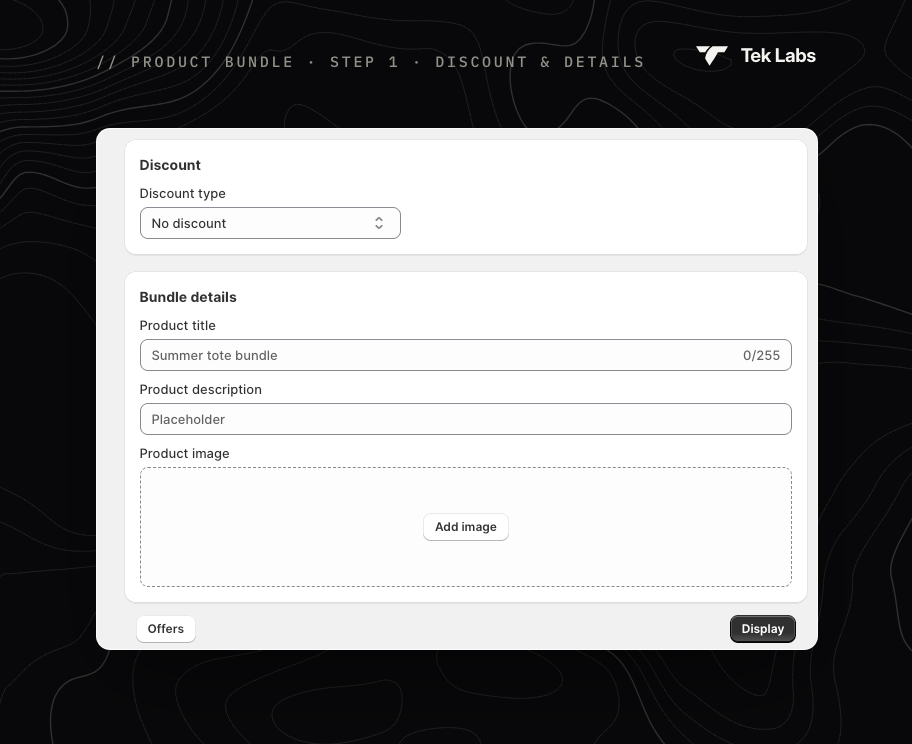
### Discount
**Discount type** for the whole bundle price:
* **No discount** (default): the bundle costs the same as the products bought separately.
* **Percentage discount**: a percentage off.
* **Fixed discount**: an amount off.
### Bundle details
These are the details of the bundle product created in Shopify, and customers see them on your store.
* **Product title** (required): the bundle name.
* **Product description**: what's included and why it's a good deal.
* **Product image**: a .gif, .jpg, .png or .svg file under 20 MB.
## Step 2 · Display
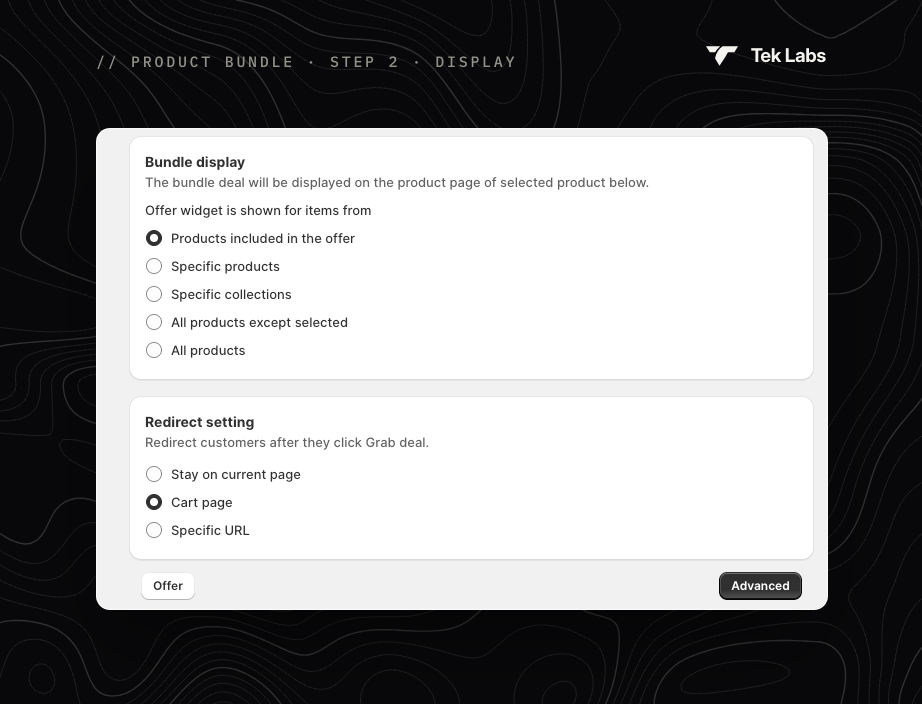
### Bundle display
The widget appears on the product pages of the items you choose:
* **Products included in the offer** (default): the pages of the bundle's own products.
* **Specific products**: the pages of the products you select.
* **Specific collections**: the pages of all products in the selected collections.
* **All products except selected**: every product page except the ones you select.
* **All products**: every product page.
### Redirect setting
Where customers go after they click **Grab deal**:
* **Stay on current page**
* **Cart page** (default)
* **Specific URL**: enter the page address.
## Step 3 · Advanced
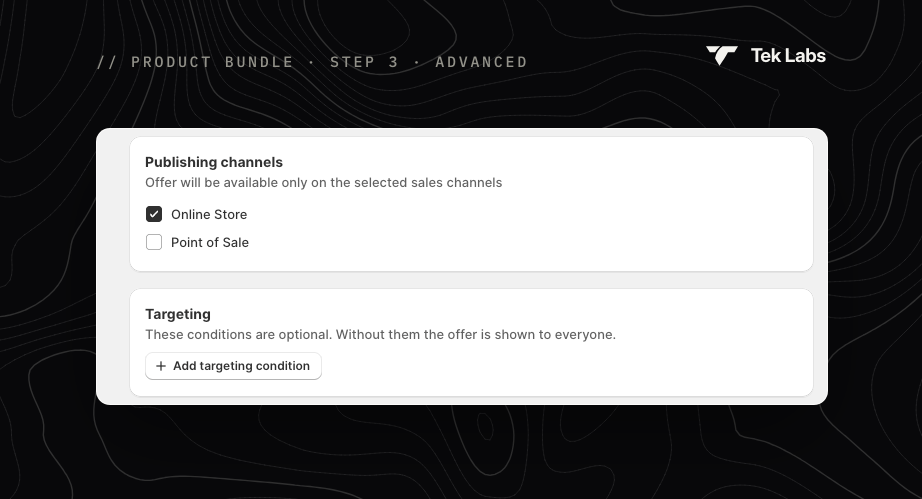
### Publishing channels
Sell the bundle on **Online Store** (default) and/or **Point of Sale**.
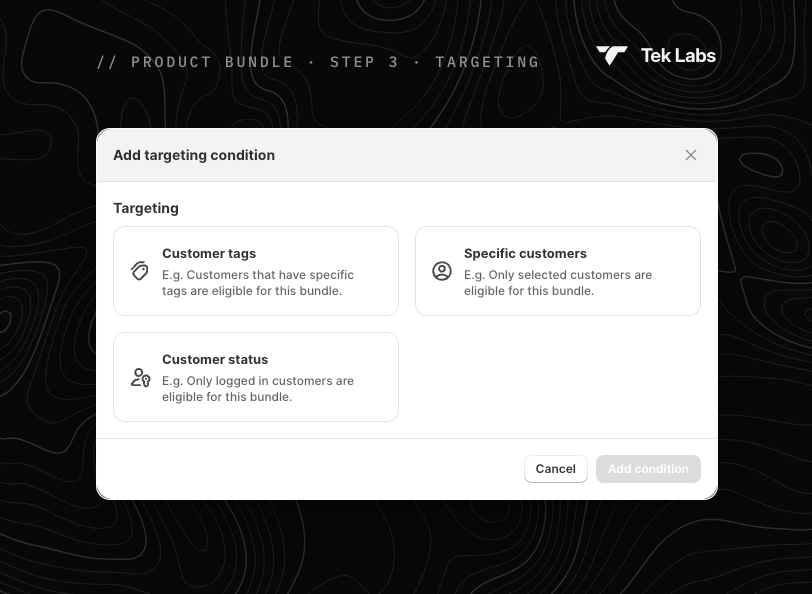
### Targeting
Optional. Click **Add targeting condition** to add:
* **Customer tags**: **Include** or **Exclude** customers with these tags.
* **Specific customers**: only the customers you select.
* **Customer status**: **Logged in customers** or **Not logged in customer**.
## Go live
Save and check the Summary, then use **Activate** or **Schedule**. See [Managing offers](/free-gift-userguide/getting-started/managing-offers.md).
* **More actions › Edit bundle info** opens the bundle product in Shopify admin.
* The widget appears below the **Add to cart** button. Move it with the **Product bundle block** app block.
* Style the widget in [Styling › Product bundle](/free-gift-userguide/user-guides/styling/product-bundle-type.md) and edit its texts in [Translations](/free-gift-userguide/user-guides/translation.md).