> For the complete documentation index, see [llms.txt](https://document.tek-labs.app/free-gift-userguide/llms.txt). Markdown versions of documentation pages are available by appending `.md` to page URLs; this page is available as [Markdown](https://document.tek-labs.app/free-gift-userguide/user-guides/gift-offers/free-gift.md).
# Free Gift
Reward customers with free or discounted products when they meet a purchase condition.
A Free gift offer adds a free or discounted product to the cart when the shopper meets a condition: a cart value, a number of items, or simply placing an order. **Buy one, get one** and **Buy X, get Y** are also Free gift offers.
{% hint style="info" %}
Before you start, make sure the **Free gift** app embed is on in your theme. See [Enabling Tek Labs app](/free-gift-userguide/getting-started/enabling-tek-labs-app.md).
{% endhint %}
## Choose a template
Go to **Offers › Create** and pick one of the Free gift templates. Each template pre-fills the condition for you.
| Template | Condition | Notes |
| ---------------------------- | -------------------------------- | --------------------------------------------------------------------------------------- |
| **Free gift by cart value** | Cart value (Min amount) | Applies to All Products by default. |
| **Free gift by item count** | Cart quantity (Min quantity) | Applies to All Products by default. |
| **Free gift on every order** | Every order qualifies | No minimum, for one-time and subscription carts. The Customer buys settings are locked. |
| **Buy one, get one** | Cart quantity, Specific Products | The gift is the same product the customer bought. No countdown timer. |
| **Buy X, get Y** | Cart quantity, Specific Products | One product unlocks a different gift product. |
The editor has three steps: **1. Offer**, **2. Display** and **3. Advanced**. Saving, scheduling and the Summary panel work the same for every offer. See [Managing offers](/free-gift-userguide/getting-started/managing-offers.md).
## Step 1 · Offer
### Offer information
**Offer name**: for your reference only, up to 255 characters. It isn't shown to customers.
### Customer buys
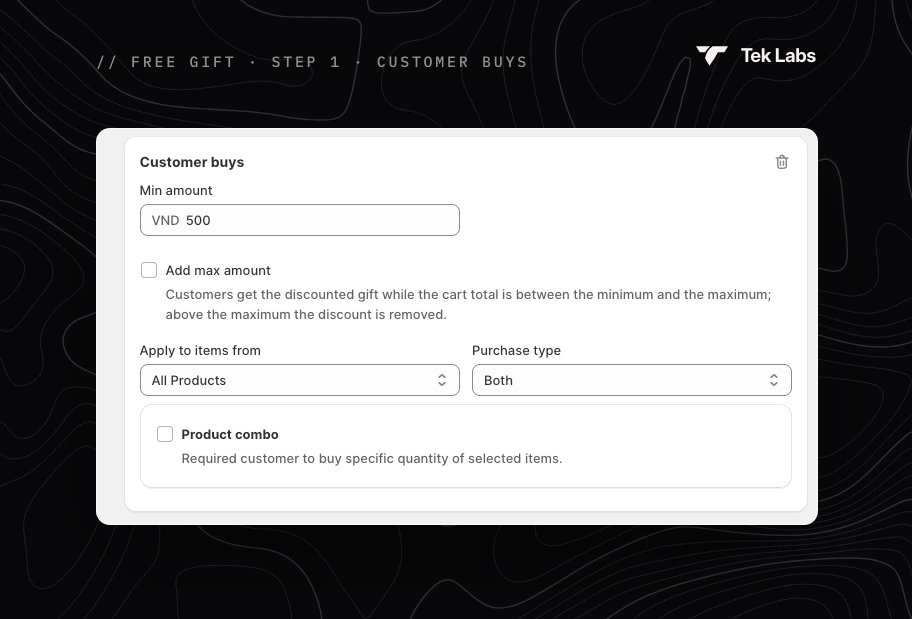
Define what the customer must buy to qualify.
* **Min amount** (cart value) or **Min quantity** (item count): the threshold to unlock the gift.
* **Add max amount** / **Add max quantity**: tick to set an upper limit. Customers get the gift while the cart is between the minimum and the maximum; above the maximum the gift discount is removed.
* **Apply to items from**: which cart items count toward the condition.
* **Specific Products**, **Product Collections**, **Specific Variants**, **Product Tags** or **All Products**.
* **Buy X, get Y** offers can use Specific Products or Specific Variants only.
* **Purchase type**: count **One-time purchase** items, **Subscription** items, or **Both** (default).
{% hint style="info" %}
Offers started from scratch (with **Create new offer** on an empty list) first ask you to choose **Cart value** ("E.g. Spend X amount to get gifts.") or **Cart quantity** ("E.g. Buy at least 2 products to get gifts.").
{% endhint %}
#### Product combo
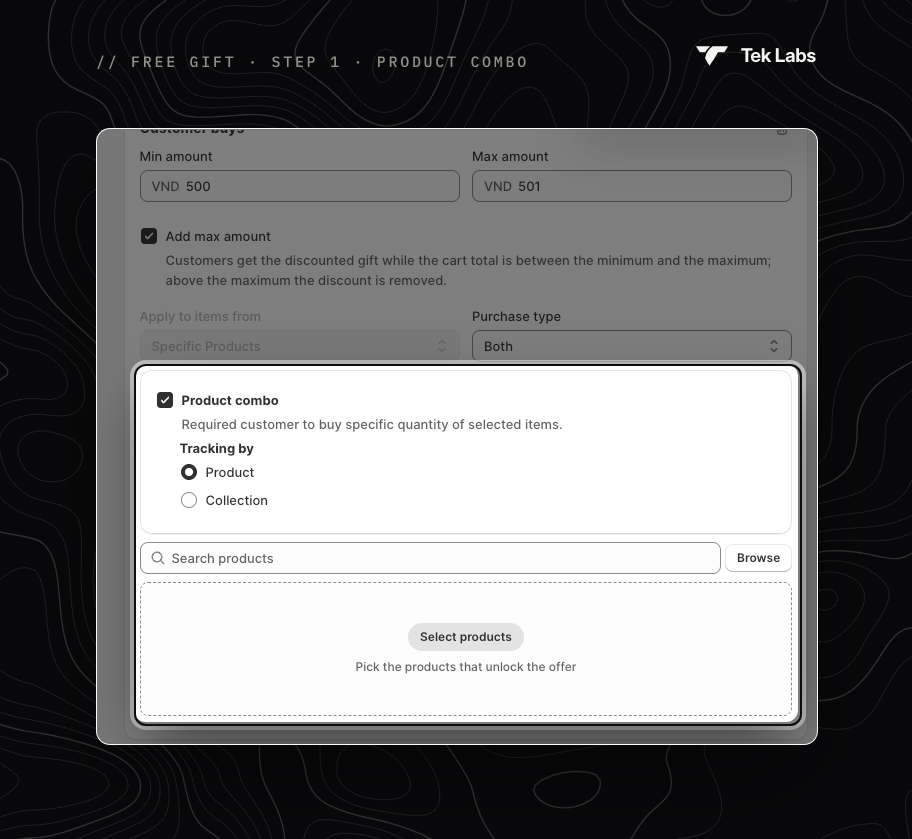
Tick **Product combo** to require a specific quantity of each selected item, for example 1 jacket **and** 2 T-shirts.
* **Tracking by**: **Product** or **Collection**. Pick the items, then enter the required quantity for each.
* The customer must buy every listed item in at least that quantity.
* Product combo isn't available for the Every order, BOGO and Buy X get Y templates, or with **Discount the cheapest product**.
### Customer gets
Choose how the gift reaches the cart.
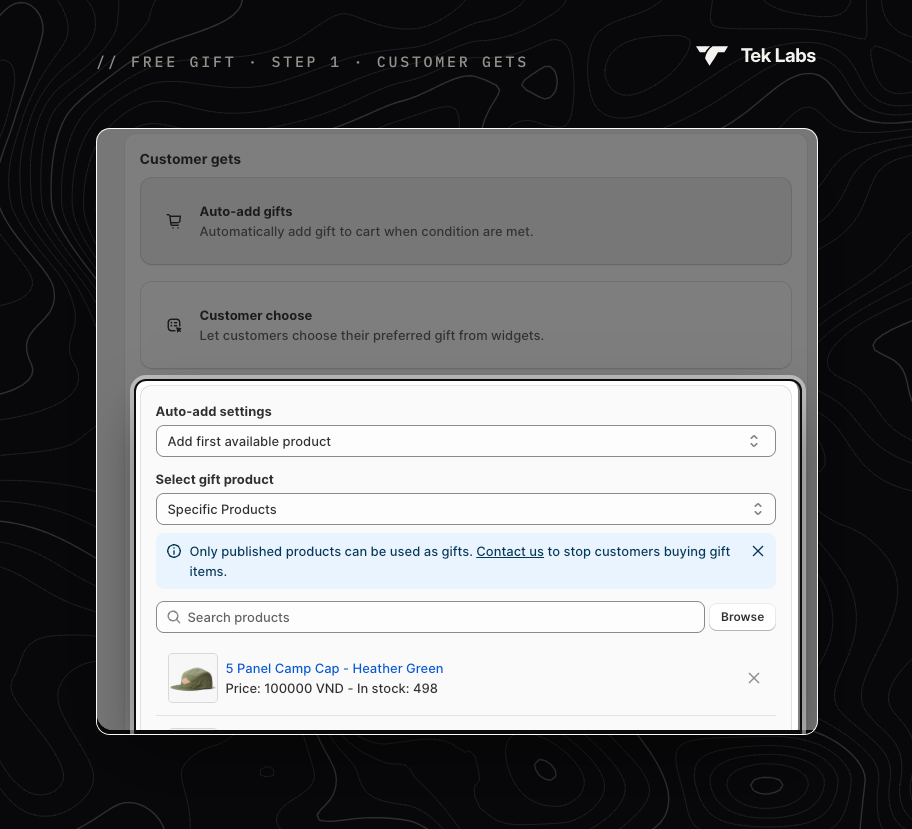
Auto-add gifts
#### Auto-add gifts (default)
The gift is added to the cart automatically when the condition is met. Under **Auto-add settings**, choose:
| Option | What happens |
| --------------------------------- | ---------------------------------------------------------------------------------------------------------------------------------------------------------------- |
| **Add first available product** | Adds the first in-stock gift in your list. If it's out of stock, the next available gift is added. Set how many with **Number of gift**. |
| **Add all product from the list** | Adds every gift in the list. Set a quantity for each gift. |
| **Discount the cheapest product** | No gift list: the cheapest qualifying item in the cart is discounted. Set how many with **Number of gift**. Not available for Buy X get Y or with Product combo. |
> *Example:* your list is Hydrogen, then Oxygen, with **Number of gift** = 2. If Hydrogen is out of stock, Oxygen is added instead. If only one Hydrogen is in stock, the cart receives one Hydrogen.
#### Customer choose
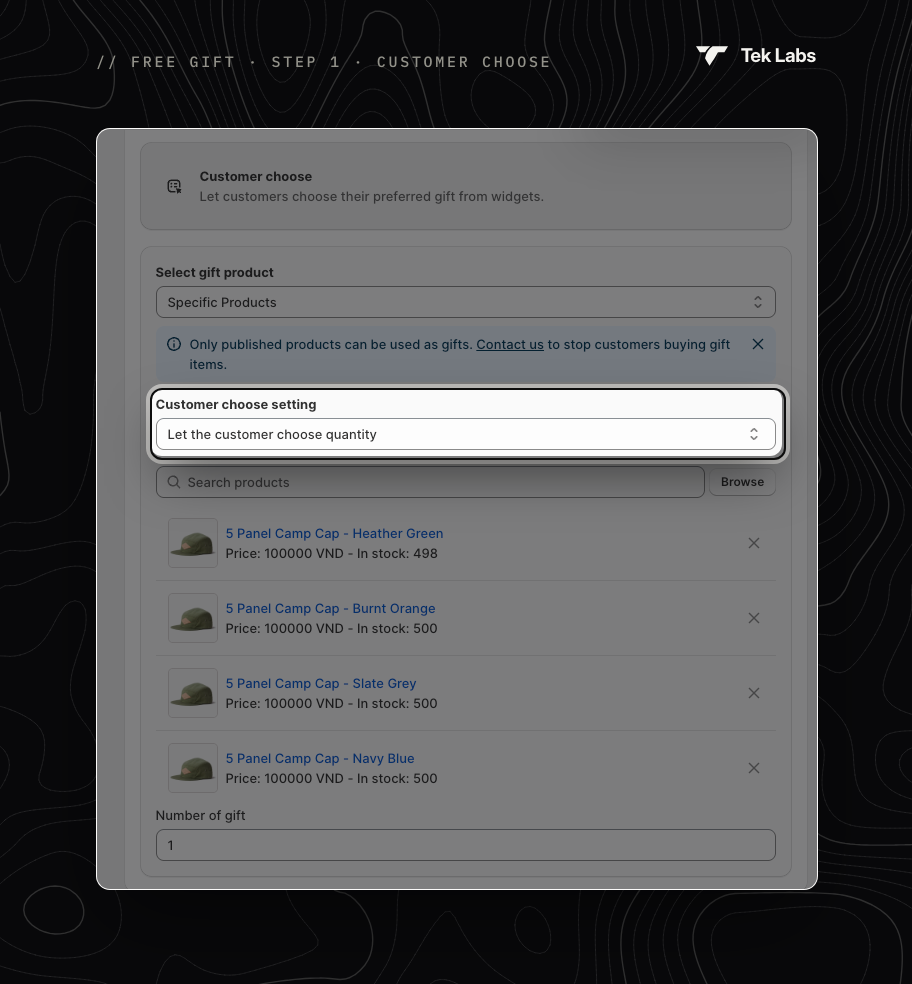
Customers pick their preferred gifts from the gift widgets.
Customer choose
* **Customer choose setting**:
* **Let the customer choose quantity**: customers choose any mix of gifts up to **Number of gift**.
* **Fixed product quantity**: each gift has a fixed quantity. Tick **Number of gift** to let customers choose only some of the listed gifts; otherwise they get all of them.
#### Gift settings for both methods
* **Select gift product**: **Specific Products**, or **Product Collections** (Customer choose with "Let the customer choose quantity" only).
* **Number of gift**: how many gifts the customer receives.
* **Gift will be the same as product**: the gift is the same product the customer bought (BOGO). It is ticked and locked on the Buy one, get one template.
{% hint style="warning" %}
Only **published** products can be used as gifts. Draft or out-of-stock gifts can stop auto-add from working. To stop customers buying gift items on their own, contact us.
{% endhint %}
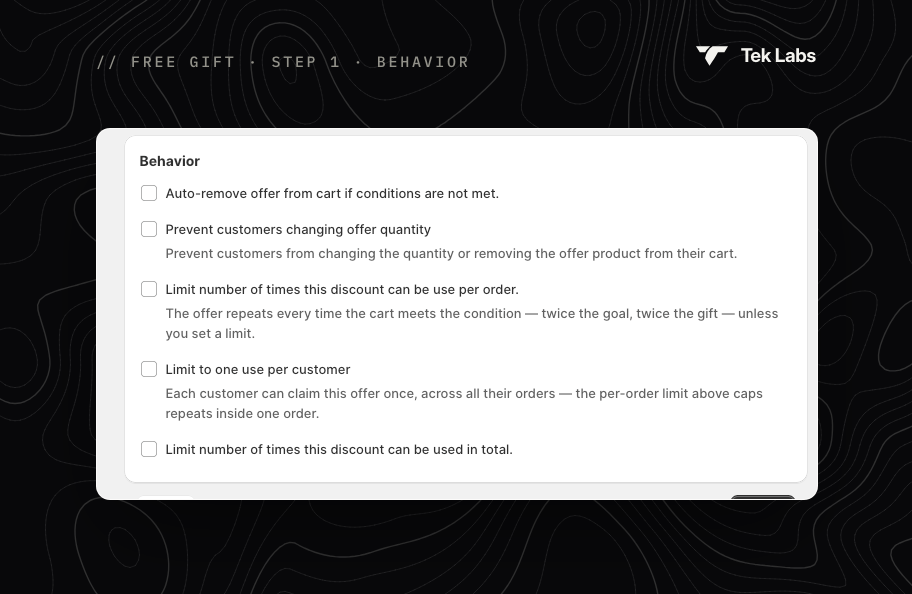
### Behavior
| Setting | What it does |
| ------------------------------------------------------------- | ---------------------------------------------------------------------------------------------------------------------------------------------------- |
| **Auto-remove offer from cart if conditions are not met.** | Removes the gift when the cart no longer qualifies, for example after a product is removed. On by default; hidden for Discount the cheapest product. |
| **Prevent customers changing offer quantity** | Customers can't change the gift's quantity or remove it from the cart. |
| **Limit number of times this discount can be use per order.** | By default the offer repeats each time the condition is met again: spend twice the goal, get twice the gift. Set a limit to cap it. |
| **Limit to one use per customer** | Each customer can claim the offer once, across all their orders. |
| **Limit number of times this discount can be used in total.** | Total uses across all orders. When reached, the offer stops for everyone. Useful for limited-stock campaigns. |
| **Hide out-of-stock items** | Customer choose only: hides gifts that are out of stock. |
{% hint style="info" %}
Set the per-order limit to **1** if you don't want the offer to repeat after the customer has received a gift.
{% endhint %}
## Step 2 · Display
Choose where shoppers see and claim the offer.
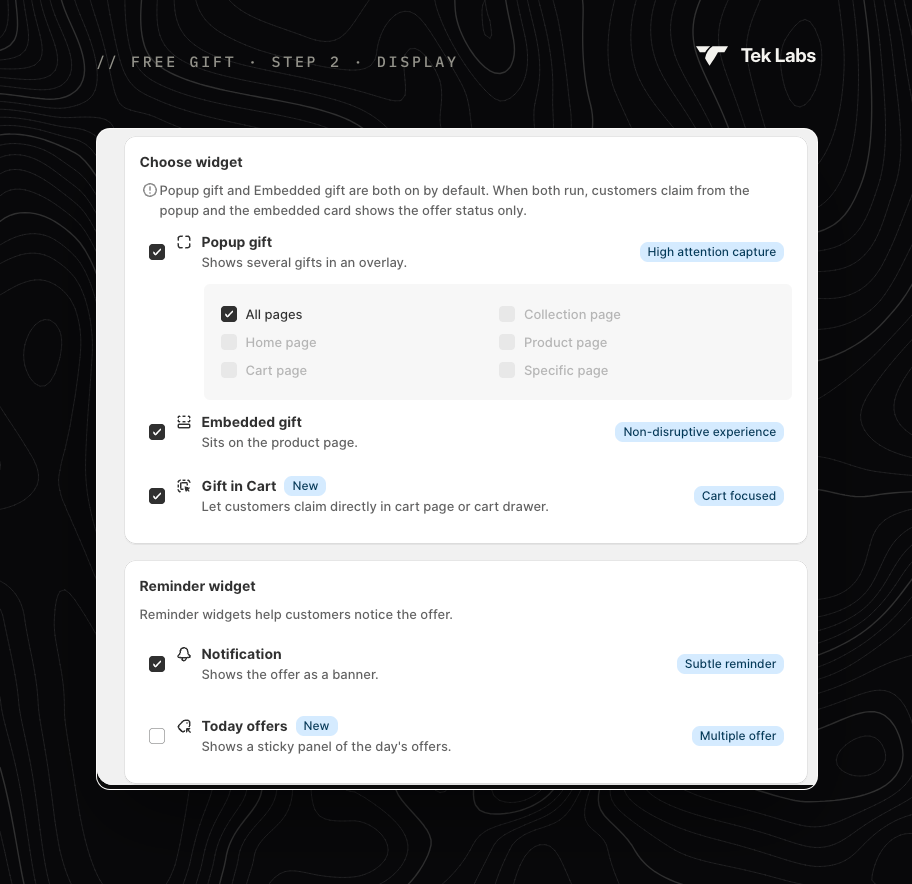
### Choose widget
| Widget | Where it appears | Default |
| ----------------- | -------------------------------------------------------------- | ------- |
| **Popup gift** | An overlay listing the gifts. Choose the pages below. | On |
| **Embedded gift** | A block on the product page. | On |
| **Gift in Cart** | Lets customers claim directly in the cart page or cart drawer. | Off |
**Popup gift pages**: **All pages**, or any of **Home page**, **Collection page**, **Product page**, **Cart page** and **Specific page** (enter the page URLs and click **Add URL**). All pages can't be combined with the others.
When both Popup gift and Embedded gift are on, customers claim gifts from the popup, and the embedded block shows the offer status only. With **Customer choose**, at least one of Popup gift, Embedded gift or Gift in Cart must be on.
### Reminder widget
| Widget | What it does | Default |
| ---------------- | --------------------------------------------- | ------- |
| **Notification** | Shows a banner when the gift is added. | On |
| **Today offers** | A sticky side panel listing the day's offers. | Off |
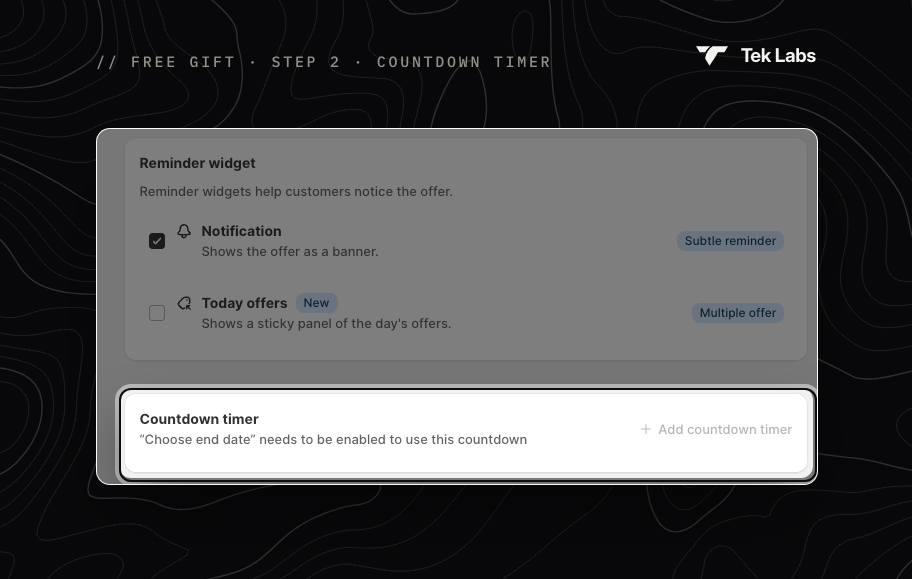
### Countdown timer
Click **Add countdown timer** to show a timer counting down to the offer's end date, then choose a **Timer format**: `dd:hh:mm:ss`, `hh:mm:ss`, `hh:mm` or `mm:ss`. The button is available only when the offer has an end date; set one with **Edit schedule**. The countdown isn't available for Buy one, get one.
The look of each widget is set in [Styling](/free-gift-userguide/user-guides/styling.md), and its texts in [Translations](/free-gift-userguide/user-guides/translation.md).
## Step 3 · Advanced
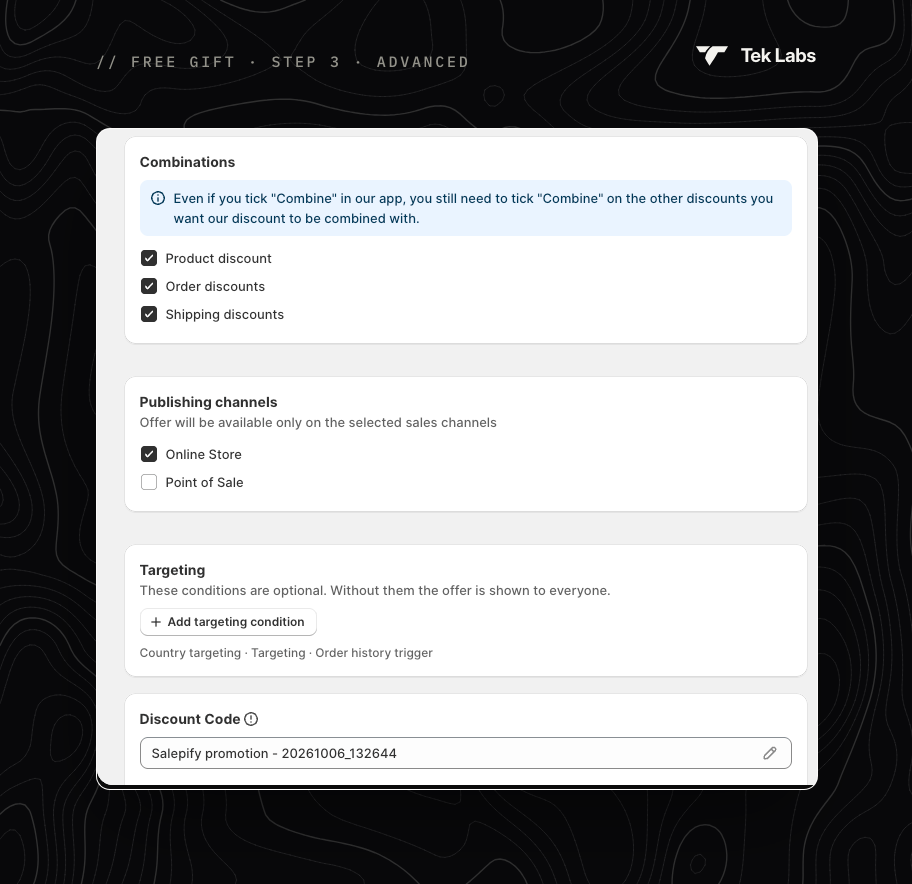
### Combinations
Choose which other discounts this offer can combine with: **Product discount**, **Order discounts** and **Shipping discounts**. All three are ticked by default.
{% hint style="warning" %}
Ticking **Combine** here isn't enough: also tick **Combine** on the other Shopify discounts you want this offer to combine with.
{% endhint %}
### Publishing channels
Run the offer on **Online Store** (default), **Point of Sale**, or both.
### Targeting
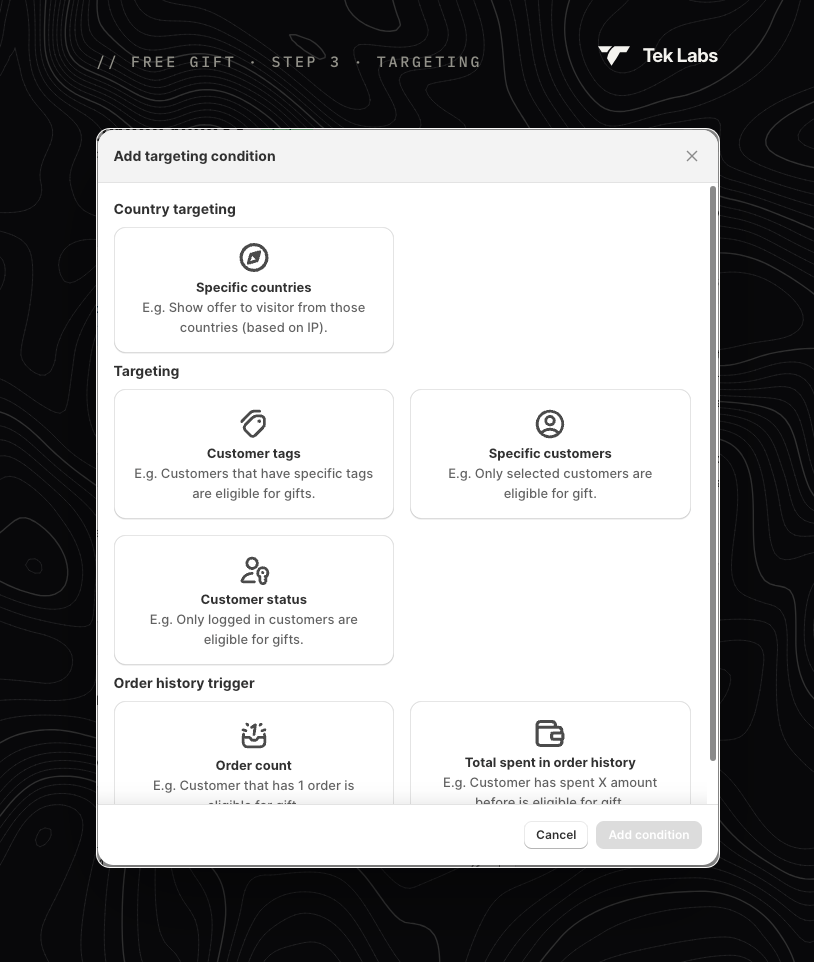
Optional. Without conditions the offer is shown to everyone. Click **Add targeting condition** and choose:
| Group | Condition | Settings |
| ------------------------- | -------------------------------- | ------------------------------------------------------------------------------------------------------------- |
| **Country targeting** | **Specific countries** | **Include** or **Exclude** countries, based on the visitor's IP. Tick **Select provinces** to narrow it down. |
| **Targeting** | **Customer tags** | **Include** or **Exclude** customers with these tags. |
| **Targeting** | **Specific customers** | Only the customers you select. |
| **Targeting** | **Customer status** | **Logged in customers** or **Not logged in customer**. |
| **Order history trigger** | **Order count** | Customers whose number of past orders is between a **Min value** and an optional **Max value**. |
| **Order history trigger** | **Total spent in order history** | Customers whose total spend is between a **Min value** and an optional **Max value**. |
Each condition can be added once. Remove one with its trash icon.
### Discount Code
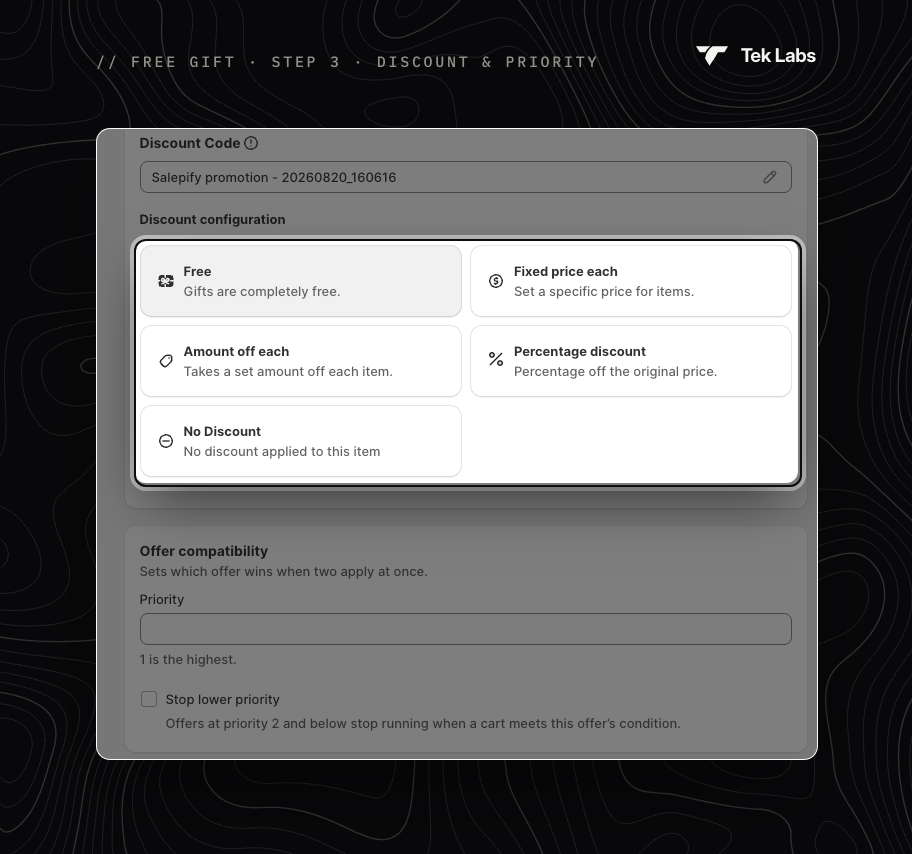
**Discount Code** is the discount name customers see in the cart and at checkout. It defaults to the offer name. Make sure it doesn't match a discount you already have.
{% hint style="danger" %}
Commas aren't allowed in the discount name; they are removed automatically.
{% endhint %}
**Discount configuration**: how the gift is priced.
| Option | Gift price |
| ----------------------- | ---------------------------------------------------- |
| **Free** (default) | The gift is completely free. |
| **Fixed price each** | Each gift sells at the price you set. |
| **Amount off each** | A fixed amount is taken off each gift. |
| **Percentage discount** | A percentage is taken off the gift's original price. |
| **No Discount** | The gift is added at full price. |
### Offer compatibility
Decide which offer wins when two Free gift offers apply to the same cart.
* **Priority**: a whole number; **1 is the highest**.
* **Stop lower priority**: when a cart meets this offer's condition, offers with a lower priority (a higher number) stop running.
## Check the Summary and go live
The **Summary** on the right shows the condition, gifts, gift method, widgets and pages, and any targeting. If something is missing, it lists what's left before the offer can go live. Then save, and use **Validate offer**, **Edit schedule** or **Activate** as needed. See [Managing offers](/free-gift-userguide/getting-started/managing-offers.md).